Getting Started
Best Practices
A few habits (the good kind) that help you get more out of your spending data.
Getting accurate categories
The more accurately your transactions are categorized, the more useful your insights become. Here's how to get there faster.
Create rules for recurring merchants
If you buy coffee at the same place every day, create a rule for it. Go to Settings → Category Rules and add a pattern like "STARBUCKS" → Food. Next time you import, it'll be categorized automatically.
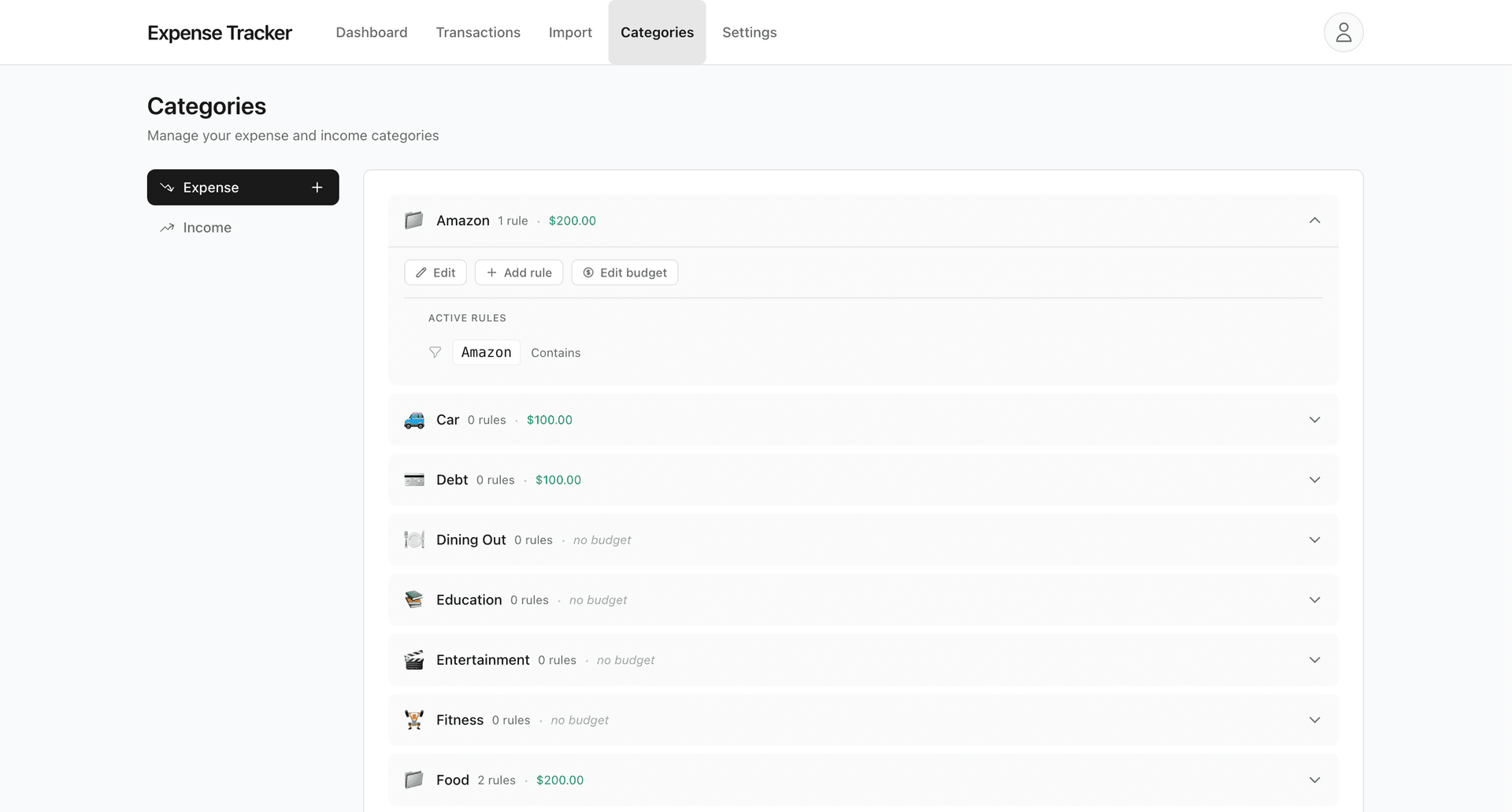
Use "contains" for variations
Bank descriptions often include store numbers or locations (like "AMAZON.COM*1X2Y3Z" or "UBER TRIP SF"). Use the "contains" match type so "AMAZON" catches all your Amazon purchases, not just exact matches.
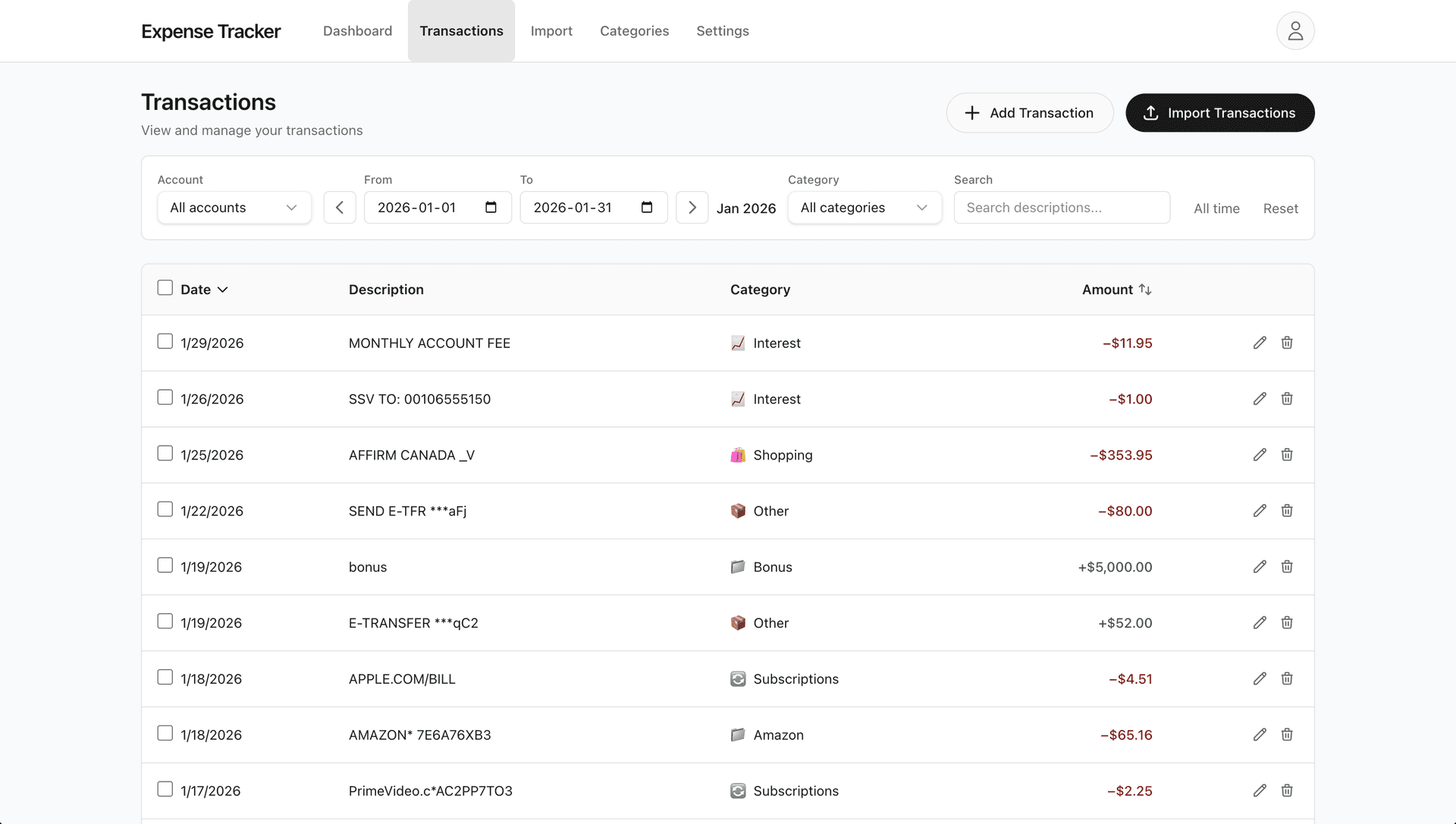
Review uncategorized weekly
On the Transactions page, filter by "Uncategorized" once a week. It takes two minutes and keeps your data clean. You'll often find patterns worth turning into rules.
Maximizing habit detection
The habit detection feature works best with enough data and the right settings.
Import at least 3 months of history
One month of data might not show patterns clearly. Three months gives us enough to see what's truly recurring versus what was a one-time thing.
Understand the threshold
By default, we flag habits when a merchant appears 5 or more times in a month. You can adjust this in your dashboard settings if you want to catch less frequent patterns.
Some categories are excluded
We don't flag rent, utilities, insurance, or debt payments as "habits"—those are usually fixed expenses you can't easily change. Large one-off purchases over $500 are also excluded.
Making sense of opportunity cost
The opportunity cost projections show what your money could become if invested. Here's how to use them without overthinking.
The math is simple
We use compound interest with a default 7% annual return (roughly the historical average of the S&P 500 after inflation). It's not a prediction—it's a way to visualize trade-offs.
Focus on "reduce by 50%" scenarios
Completely stopping a habit is hard. The "reduce by 50%" projection is often more realistic—and still shows meaningful long-term impact.
It's information, not advice
We're not telling you to stop buying coffee. Some habits are worth it. Others might surprise you when you see the numbers. You decide what matters.
Managing multiple accounts
If you have checking, savings, and credit card accounts, here are some tips for keeping things organized.
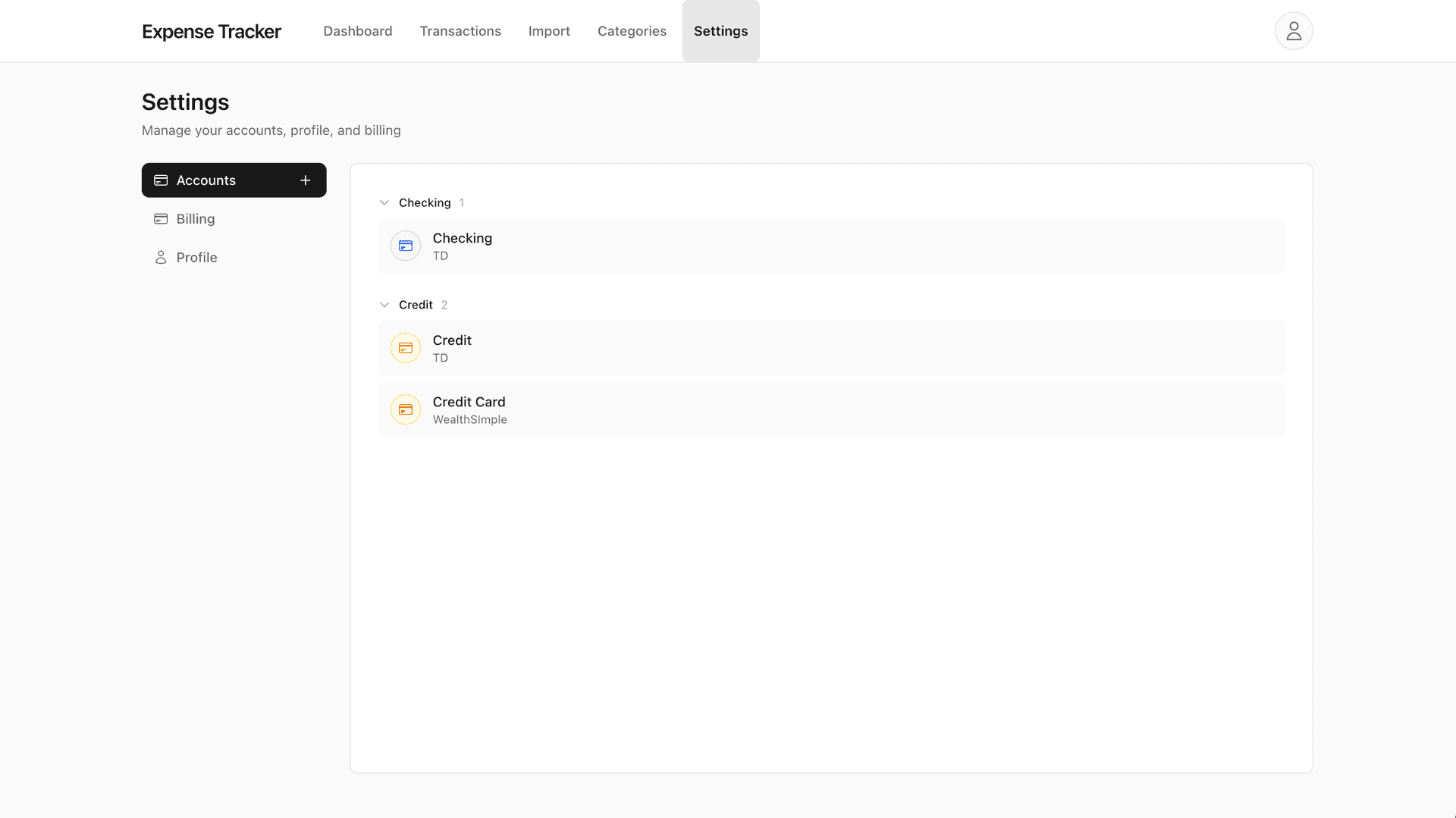
Create separate accounts for each
When you first import, create an account for each bank account or card. Column mappings are saved per account, so your next import from that bank will be even faster.
Credit cards show spending only
For credit card accounts, we show "Total Spending" rather than Income/Expenses/Net—because credit card payments aren't really income.
Use "All Accounts" for the big picture
The dashboard defaults to showing all accounts combined. Use the account filter when you want to focus on just one.
Avoiding duplicate imports
We handle duplicates automatically, but here's how it works.
Each transaction gets a "fingerprint" based on its date, amount, and description. When you import, we check each transaction against what's already in your account.
- New: We haven't seen this before—it'll be imported.
- Duplicate: Exact match—it'll be skipped automatically.
- Update: Same fingerprint but different category—you can choose to update it.